
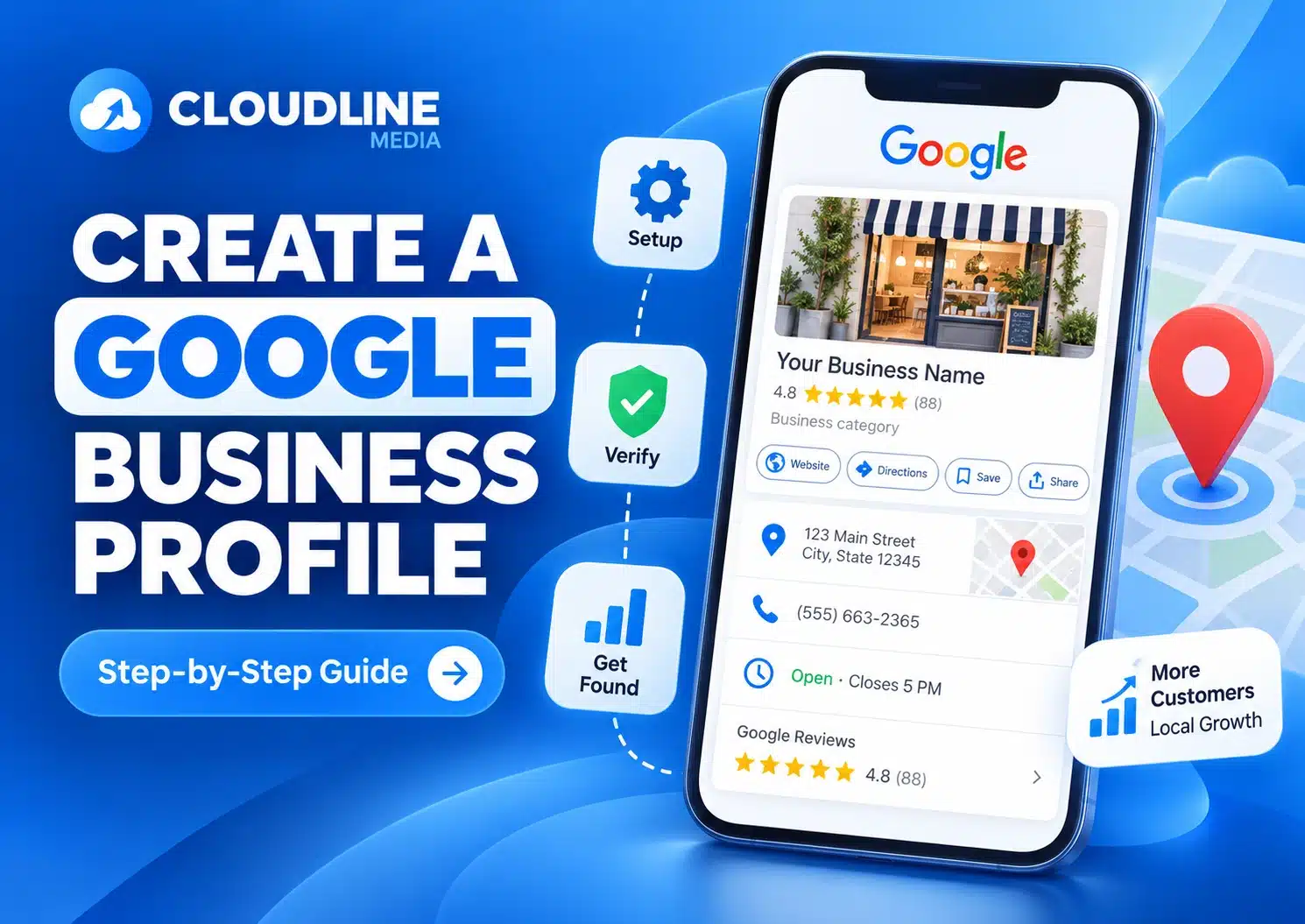
A Google Business Profile helps your business appear on Google Search and Google Maps. It allows customers to find your contact details, opening hours, services, photos and reviews in one place. Setting it up correctly can improve your local visibility and make it easier for potential customers to contact you.
It also gives you more control over how your business appears when people search for your products or services locally. By adding accurate information, helpful photos and customer reviews, you can create a stronger first impression. This can encourage more people to visit your website, call your business or request your services.
Step 1: Sign In to Your Google Account
Start by signing in to the Google Account you want to use for your business. Choose an account that you can access regularly, as you may need it later to update your profile, respond to reviews and manage important business information.
If you already have a Google Account for your business, use that account to keep everything organised in one place. If you do not have one yet, create a new Google Account before moving to the next step.
Make sure the email address and password are kept secure and only shared with trusted people who need access. Using the right account from the beginning can make managing your Google Business Profile much easier in the future.
Step 2: Search for Your Business
Search for your business name on Google to check whether a Google Business Profile already exists. Try using your business name and location together so you can quickly find any listing connected to your company.
If you find an existing profile, check the details carefully and claim it if it belongs to your business. If no profile appears, you can create a new one, but avoid making a duplicate listing if one already exists.
Step 3: Add Your Business Name
Enter your real business name exactly as customers know and recognise it. Make sure it matches the name used on your website, signage and other business listings so your information stays consistent.
Avoid adding extra keywords, service names or locations unless they are genuinely part of your official business name. Keeping the name accurate helps your profile look professional and reduces the risk of problems with Google.
Step 4: Choose Your Business Category
Select the category that best describes your main business activity. Choose the most accurate category rather than selecting several unrelated options.
For example:
- Plumber
- Electrician
- Builder
- Marketing agency
- Restaurant
- Hair salon
- Roofing contractor
Step 5: Add Your Business Location
If customers visit your business, enter the correct physical address where they can find you. Make sure the location is complete and accurate so customers can get directions without confusion.
Your address should also match the details shown on your website and other business listings. Keeping this information consistent helps your business appear more reliable and makes it easier for customers to find the right location.
Step 6: Add Your Service Area
If you travel to customers instead of serving them at your address, add the areas you cover. Only add areas where your business genuinely provides services.
You can include relevant:
- Towns
- Cities
- Postcodes
- Local service areas
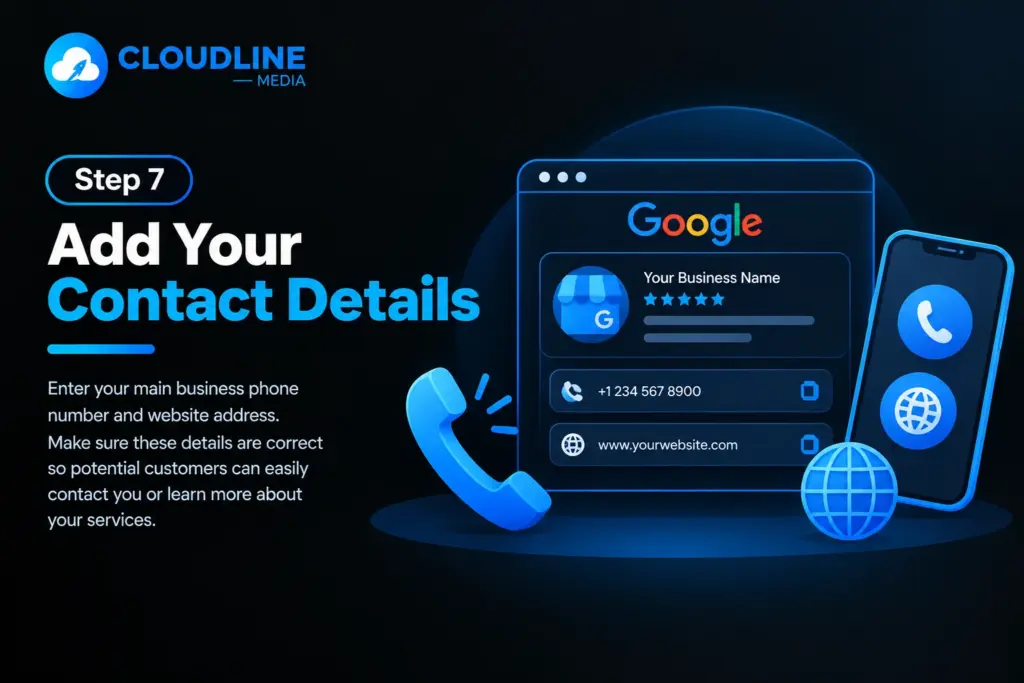
Step 7: Add Your Contact Details
Enter your main business phone number and website address. Make sure these details are correct so potential customers can easily contact you or learn more about your services.
Step 8: Verify Your Business
Google may ask you to verify that you are authorised to manage the business before your profile becomes fully active. Follow the verification method Google provides, such as phone, email, video or postcard, and make sure the information you submit is accurate.
Depending on your business, verification may be available through:
- Phone
- Text message
- Video recording
- Live video
- Postcard
Follow the verification method Google provides.
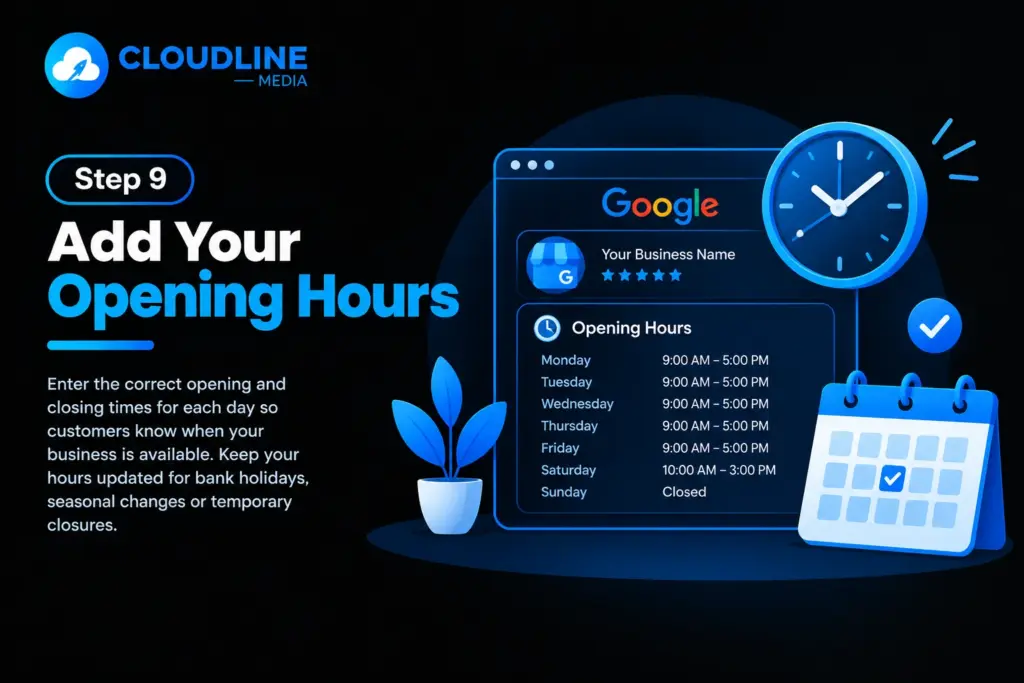
Step 9: Add Your Opening Hours
Enter the correct opening and closing times for each day so customers know when your business is available. Accurate hours can help prevent confusion and make it easier for people to plan when to call or visit.
Remember to update your opening hours for bank holidays, seasonal changes or temporary closures. Keeping this information current helps customers trust that the details on your profile are reliable.
Step 10: Write Your Business Description
Add a short description explaining what your business does, who you help and the areas you serve. Keep it simple so potential customers can quickly understand your services and what makes your business relevant to them.
Use clear, natural wording and focus on useful information. Avoid repeating unnecessary keywords, as the description should be written for customers first while still helping Google understand your business.
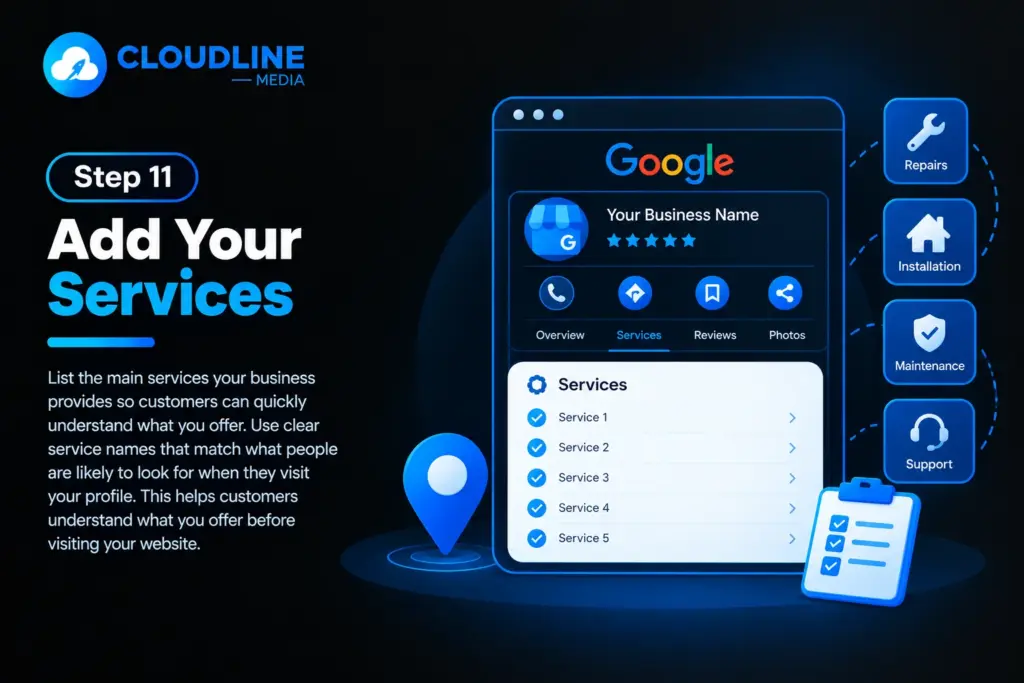
Step 11: Add Your Services
List the main services your business provides so customers can quickly understand what you offer. Use clear service names that match what people are likely to look for when they visit your profile. This helps customers understand what you offer before visiting your website.
For example, a plumbing company might add:
- Boiler repairs
- Leak detection
- Emergency plumbing
- Bathroom plumbing
- Heating services
Step 12: Upload Business Photos
Add clear and genuine photos that represent your business, services, team or location. High-quality images can help customers understand what to expect and make your profile look more professional.
Update your photos regularly and avoid using blurry, outdated or unrelated images. Real business photos can build trust and give potential customers more confidence before they contact you.
Useful photos can include:
- Your logo
- Business premises
- Team members
- Vehicles
- Equipment
- Products
- Completed projects
Good photos can make your profile look more professional and trustworthy.
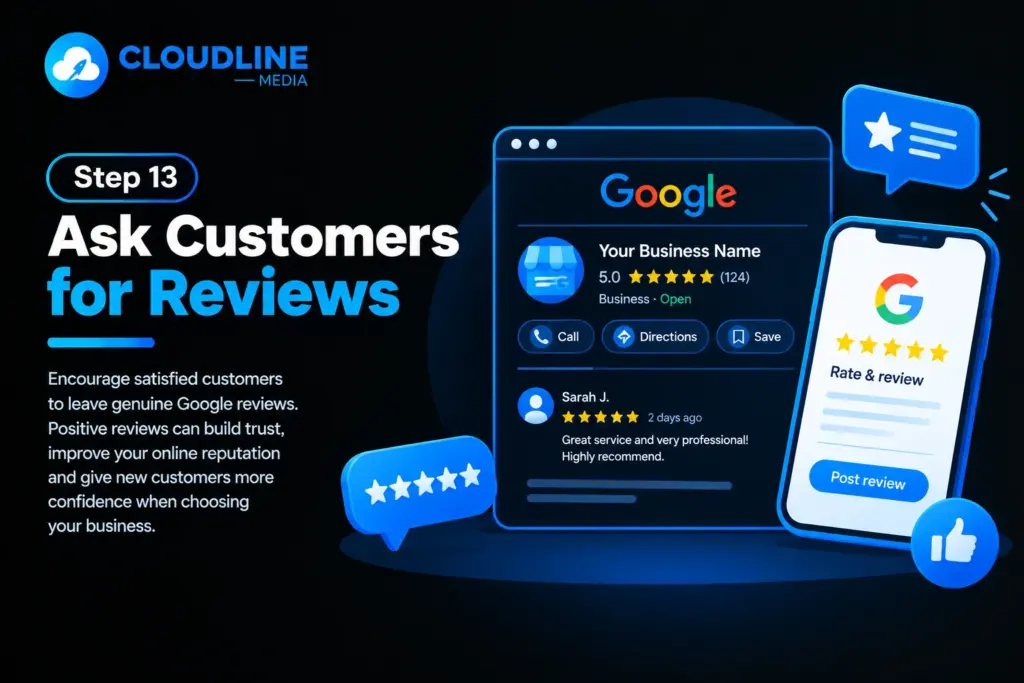
Step 13: Ask Customers for Reviews
Encourage satisfied customers to leave genuine Google reviews. Positive reviews can build trust, improve your online reputation and give new customers more confidence when choosing your business.
Step 14: Respond to Reviews
Reply to customer reviews whenever possible. Thank customers for positive feedback and respond professionally to negative comments. Your replies also show potential customers how your business communicates.
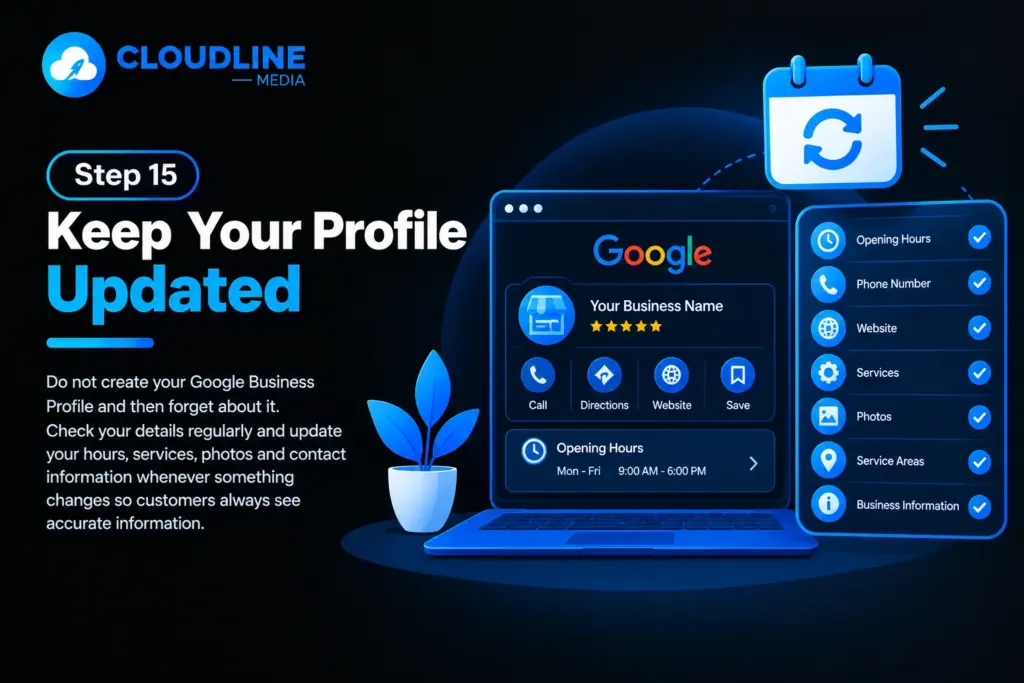
Step 15: Keep Your Profile Updated
Do not create your Google Business Profile and then forget about it. Check your details regularly and update your hours, services, photos and contact information whenever something changes so customers always see accurate information.
Regularly check and update:
- Opening hours
- Phone number
- Website
- Services
- Photos
- Service areas
- Business information
Final Google Business Profile Checklist
Before you finish setting up your Google Business Profile, review each section carefully to make sure your business details are complete, accurate and up to date.
- Use your real business name
- Choose the correct primary business category
- Add your accurate business address or service area
- Add your main phone number
- Add your website link
- Complete the verification process
- Add your correct opening hours
- Write a clear business description
- Add your main services
- Upload your business logo
- Add clear and genuine photos
- Check your service areas
- Keep your contact details up to date
- Ask satisfied customers for genuine reviews
- Respond to customer reviews professionally
- Update your profile when business information changes
- Check your profile regularly for accuracy
- Make sure customers can easily contact you
A complete and accurate Google Business Profile can help customers find your business, understand your services and feel more confident about getting in touch. Regular updates, fresh photos and genuine reviews can also help keep your profile useful and trustworthy.
Final Thoughts
Creating a Google Business Profile is a simple but important step for improving your local online presence. Start with accurate business information, complete the verification process and add useful details that help customers understand your services.
Once your profile is live, continue adding photos, collecting reviews and keeping your information updated. A well-managed Google Business Profile can help more local customers find your business, trust what they see and get in touch.